

Start from 解析追加 (Add analysis) at the top of the viewer, in three steps. This chapter covers what all four analyses share; each analysis's conditions and results have their own chapter.
| Analysis | Tells you | How the area is set |
|---|---|---|
| Ground shadow | Hours of shadow on the ground | Draw a rectangle (up to 25 ha) |
| Wall shadow | Sunlight on the walls of chosen buildings | Set automatically from the chosen buildings |
| Noise | How sound spreads from noise sources | Draw a rectangle (up to 25 ha) |
| Wind | Wind flow around buildings | Pick a centre point (200 m square) |
The number of analyses you can run per day depends on your plan (Free: 2 per day).
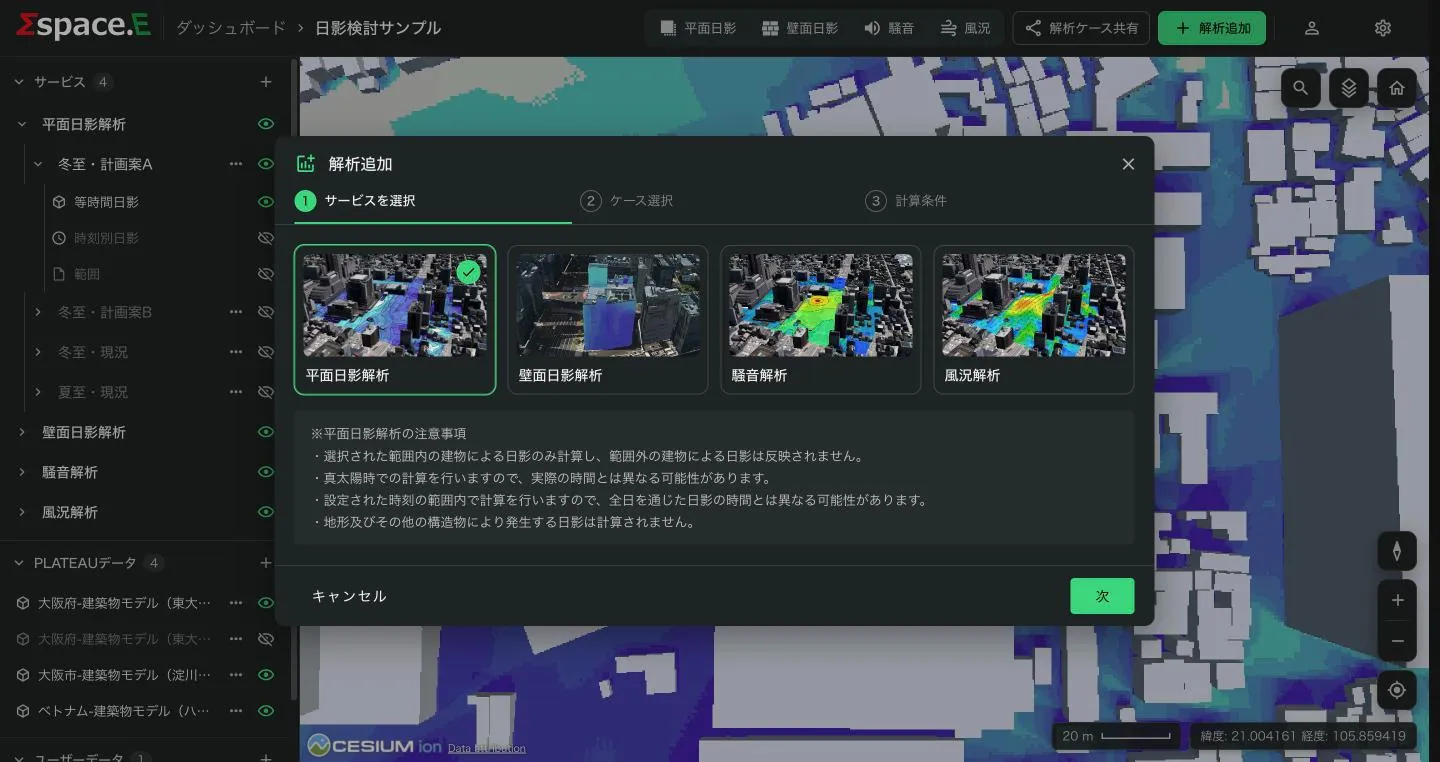
1. Choose a service
Pick the type of analysis; its notes appear underneath. Analyses not included in your plan show "Not included in your plan" and cannot be chosen.
2. Choose a case
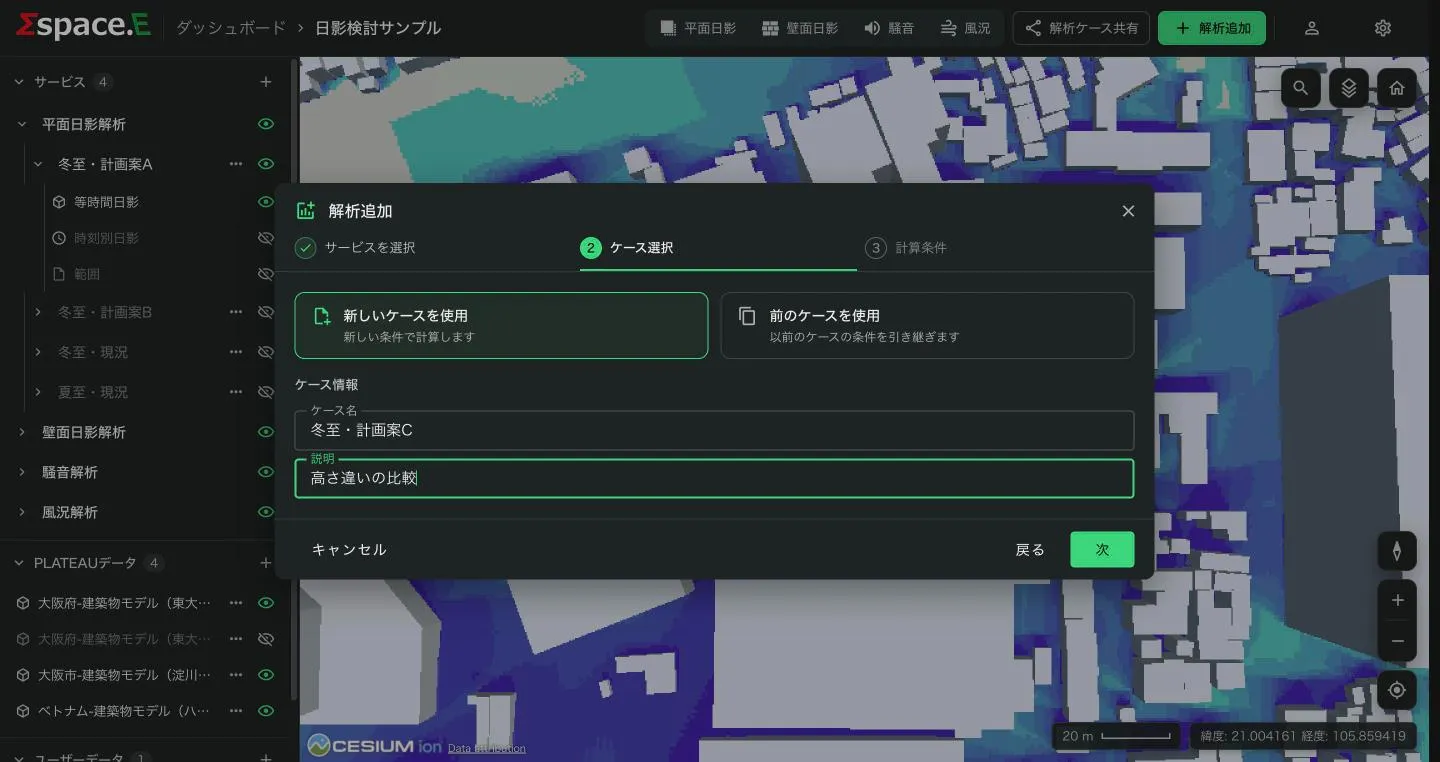
A "case" is one set of conditions and its results.
- Use new case
- Start from fresh conditions.
- Use the previous case
- Carry over an earlier case's conditions. Only offered when the analysis already has cases. The name starts as "Copy of …". Handy for comparing small variations.
ケース名 (Case name) is required, up to 50 characters. 説明 (Description) is optional.
3. Conditions
Press 地図上で条件を設定 (Set conditions on map) to open the full-screen map editor. Set the area and buildings, press 確定 (Confirm) at the top right, then enter the calculation conditions and press 計算開始 (Start calculation). The calculation runs on the server, so it continues if you close the screen; you are notified when it finishes (Notifications).
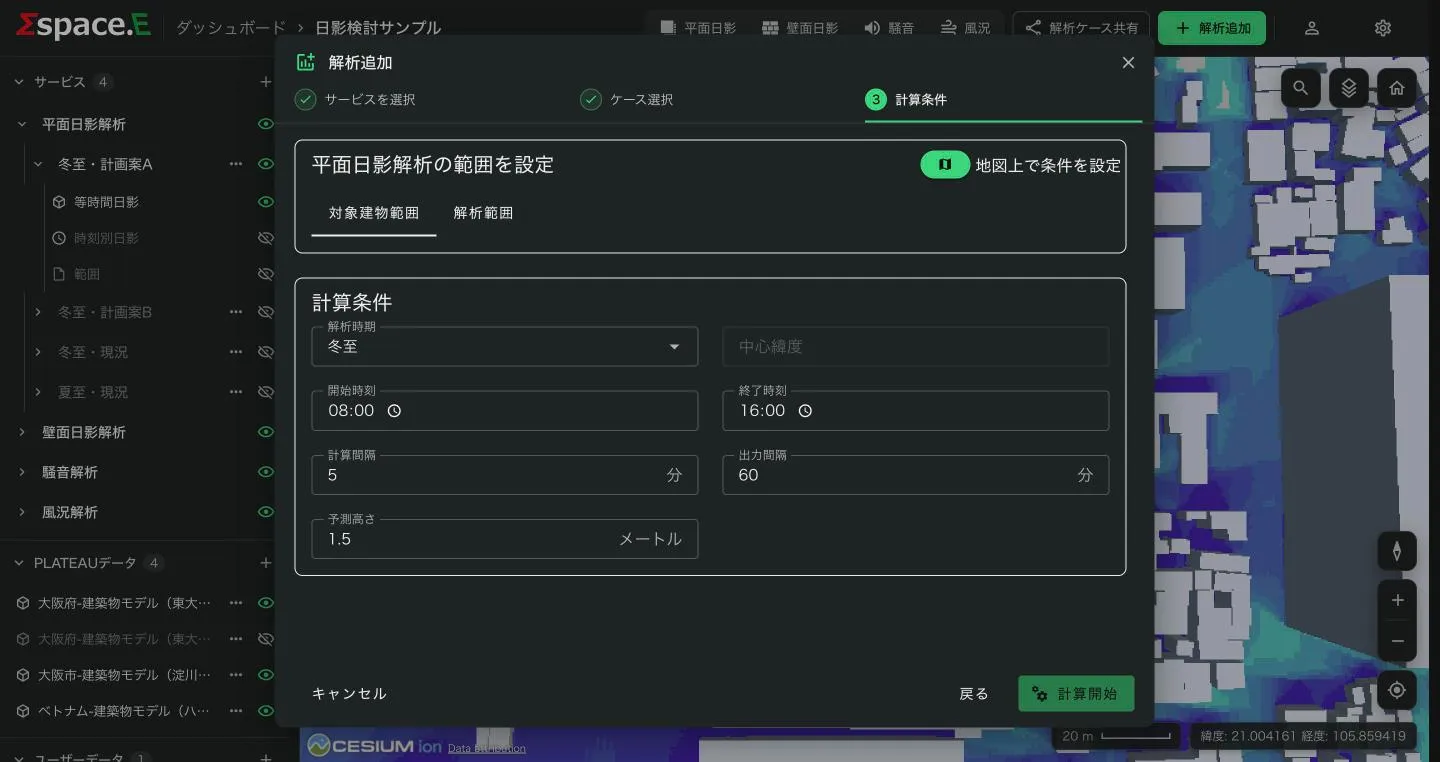
If a calculation cannot start, an error explains why:
- You have reached today's calculation limit; try again tomorrow.
- You have reached the maximum number of cases.
- This analysis is not available on your plan.
Setting conditions on the map
What you set in the map editor (an area for ground shadow, buildings for wall shadow, an area and sources for noise, a centre point for wind) and the add, exclude and IFC building tools are covered in Setting conditions on the map.