

Create a group for a company, department or team and everyone in it can use the same workspaces and projects. Groups can have subgroups to any depth, and members and roles of a parent group carry over to the levels below automatically.
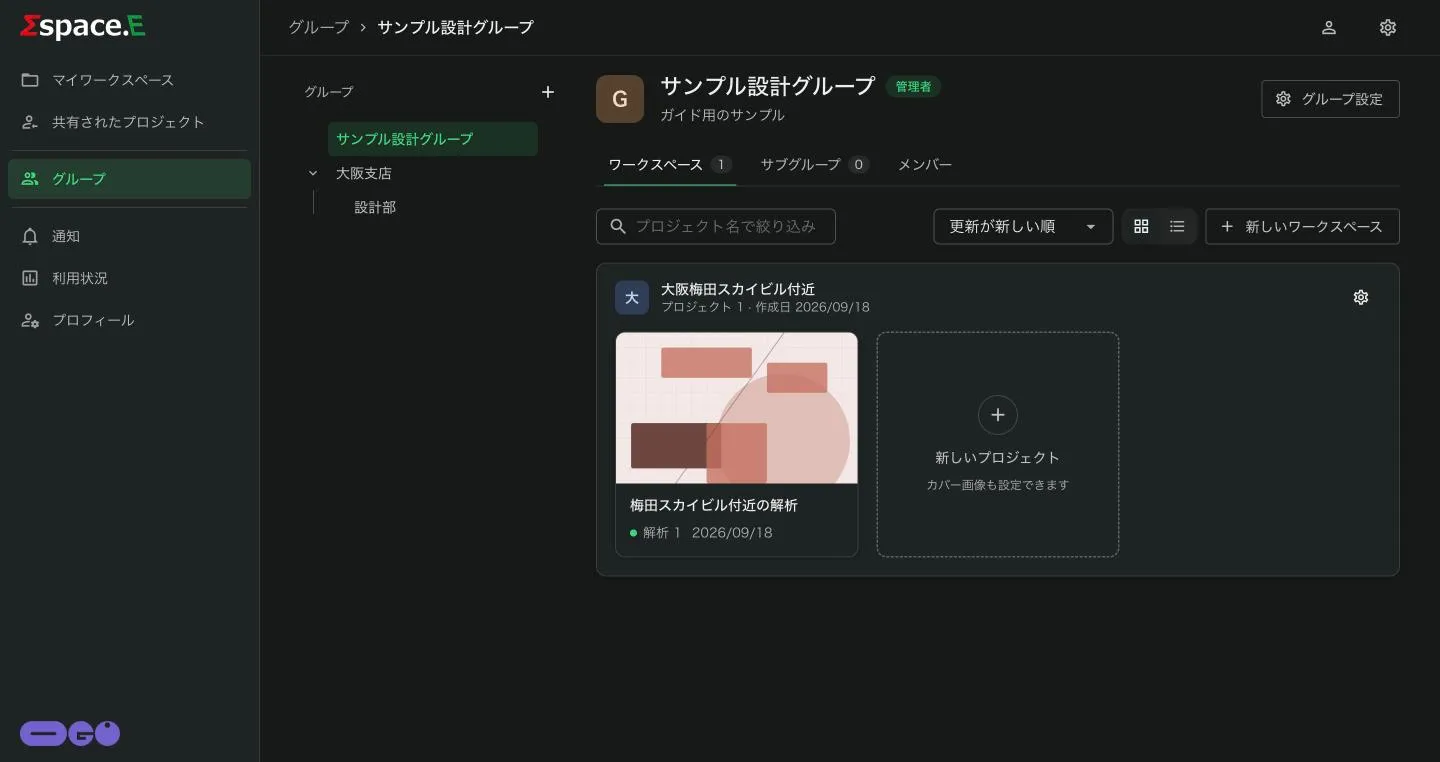
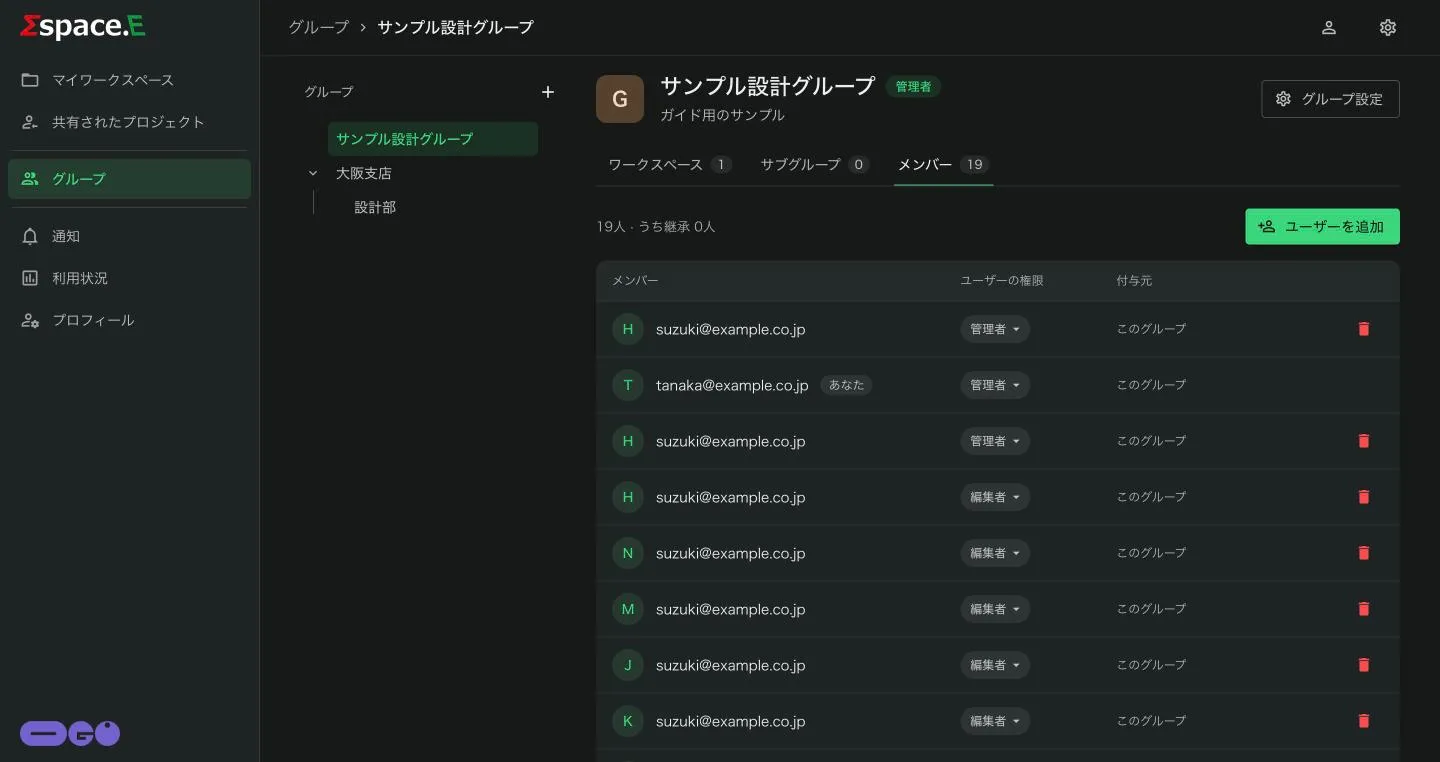
Groups need the Basic plan or above. If グループ (Group) is missing from the left menu, check your plan (Usage and plans).
| Plan | Groups you can create | Groups you can join | Workspaces per group |
|---|---|---|---|
| Free | — | — | — |
| Basic | 1 | 3 | 3 |
| Business | Unlimited | Unlimited | Unlimited |
Subgroups count towards the groups you can create. On the Basic plan, once you have created one group you cannot add a subgroup.
The screen
The group tree is on the left and the selected group's three tabs are on the right. The header shows the group name and your role in it (あなたの権限); inside a subgroup it also links to the 親グループ (parent group). On narrow screens the tree becomes a drop-down.
- Workspaces
- Workspaces shared by the group. Every member can see the projects inside.
- Subgroups
- The subgroups directly below. Click a row to open it.
- Members
- Members of this group and their roles, including people inherited from parent groups.
Creating a group
- Press + next to the グループ heading on the left, or グループを追加 (Add group) when you have none yet.
- Enter a グループ名 (group name, up to 50 characters) and an optional 説明 (description), then press 保存 (Save).
- You become the group's 管理者 (Admin).
If you have reached your limit, "グループの作成数が上限に達しました。" (You have reached the maximum number of groups) appears after saving.
Roles
| Role | Can |
|---|---|
| 管理者 (Admin) | Rename or delete the group, add and remove members and change roles, create subgroups and group workspaces; edit, delete and share projects |
| 編集者 (Editor) | Edit data in the group (projects, cases, analyses), change workspace settings, add projects |
| 閲覧者 (Viewer) | View only. Projects in group workspaces open with ビューアで開く (Open in viewer) |
Adding a member
Admins only.
- On the メンバー tab, press ユーザーを追加 (Add user).
- Enter their メールアドレス (email) and choose a ユーザーの権限 (role).
- They become a member straight away and receive an invitation email ("You've been invited to the group on Mspace.E").
Only people who have already signed up and are on the Basic plan or above can be added; ask anyone else to sign up first. People you add to a group that has subgroups are inherited by those subgroups too.
Common reasons an add fails:
- "This user is already a member of this group."
- "This user already has access inherited from a parent group." They are already a member higher up.
- "This email address is not registered yet."
- "This user's plan does not allow joining groups." Their plan is Free.
Changing a role or removing a member
- To change a role, an admin clicks the member's role and picks another.
- To remove someone, press the bin icon. You cannot remove yourself.
- A group always needs at least one admin. Removing the last admin, or changing them to another role, shows "A group needs at least one administrator." Make another member an admin first.
- Removal cannot be undone, so you are asked to confirm.
Subgroups and inherited roles
- Open the group that will be the parent and press サブグループを追加 (Add subgroup) on the サブグループ tab (admins only).
- Enter the サブグループ名 (subgroup name) and description and save.
Members of the parent group become members of the subgroup with no further steps. The 付与元 (Granted in) column on the メンバー tab shows where each role comes from:
- This group: granted directly here.
- Inherited from …: granted in a parent group. The nearest parent's setting applies.
In a subgroup an inherited role can be raised but never lowered ("Cannot be lower than the parent group"), and an inherited member cannot be removed there. Remove them in the parent group that granted the role.
Example: make Tanaka a 閲覧者 (Viewer) in the parent group "Design" and Tanaka is a viewer in its subgroup "Osaka branch" too. Raise Tanaka to 編集者 (Editor) in Osaka branch and Tanaka is an editor there and in the subgroups below it.
Group workspaces
- On the ワークスペース tab press 新しいワークスペース (New workspace) (admins only).
- Every member, including inherited members, can see it. Projects inside can be viewed or edited according to each member's role.
A workspace can be deleted by the person who created it or by a group admin.
Renaming or deleting a group
Admins can change the name and description from グループ設定 (Group settings), next to the group name or on the gear in the tree. グループを削除 (Delete group) on the same screen deletes the group and every subgroup below it. This cannot be undone.
Group roles versus project sharing
To show a single project to someone, use sharing rather than a group.
| Group role | Project share | |
|---|---|---|
| Applies to | The group and all subgroups below | That one project |
| Inherited | Yes, by lower levels | No |
| Roles | Admin, Editor, Viewer | Admin, Editor, Viewer |